 SkySend
Until now, SkySend worked in one direction. You had something, you encrypted it in your browser and you sent the link. But just as often it goes the other way round: you need a signed contract from a client, the login to a router from someone on site, or a scan of an ID together with the account details of a new colleague. That usually ends up as an email attachment or a message in a chat, sitting there for years.
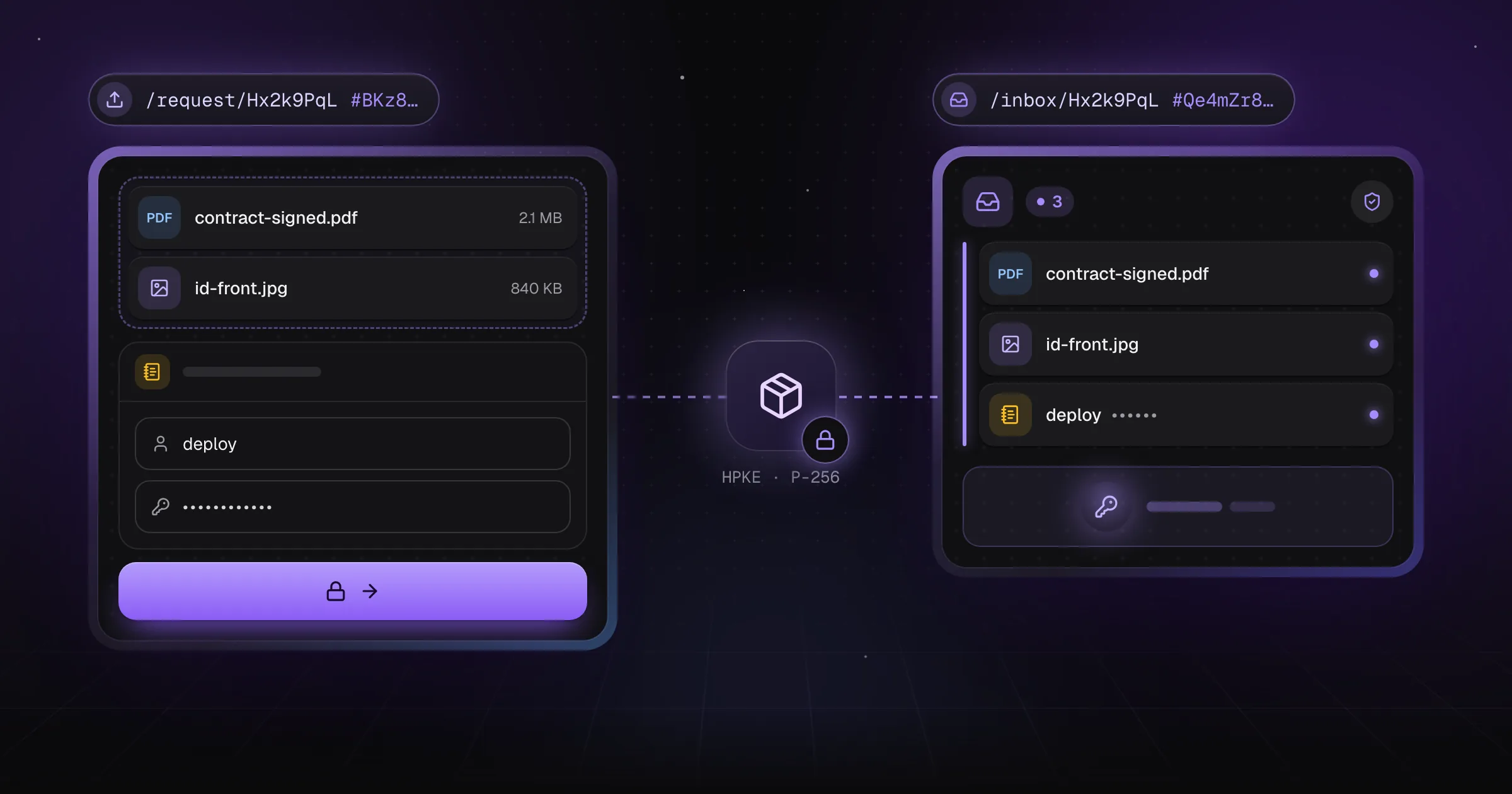
SkySend 3.0 adds requests. You ask for files, a note or both, hand out the upload link, and whatever arrives is encrypted for you alone. The sender needs no account, and the server cannot open the inbox.
How a request works
- Open Request in the app and choose what you ask for: Files, a Note or Both.
- Optionally write a line about what you need, like "Documents for the tax return". The sender sees it, and the server only stores it encrypted.
- Set how long the request stays open, how many uploads it takes, how large one may be and, if you like, a password for the inbox.
- Click Create request and you get two links.
The sender opens the upload link, drops in the files, fills in the note or does both, and clicks Encrypt and send. Their browser encrypts everything before it leaves, and they get nothing to keep. You open the inbox link, and your browser decrypts what arrived.
Two links, two jobs
The upload link lets people send into the request, and nothing else. Hand it to whoever should send you something.
The inbox link opens, downloads and deletes everything that arrives. It is the only way in.
Nobody can recover it, not even the operator of the instance. Save it before you leave the page, or add a password so the link alone opens nothing.
Ask for files
The sender drops one or more files into the upload page. Several files in one upload arrive as one zip archive, like a normal upload with several files. You decide how large one upload may be, up to the limit of the instance, and how often you can download each one.
Ask for a note
Some things are not files: a password, an API key, the details of a Wi-Fi network. A request can ask for a note instead, so they never have to go through a chat.
Lay out the fields of the note in a template, like a username and a password. The sender sees your fields with their labels fixed and fills in the values. SkySend comes with templates for credentials, an SSH key, a Wi-Fi network and an API key, and you can save your own. Without a template the sender writes freely, with the same blocks as any SkySend note: text, passwords, code and SSH keys.
In the inbox, Open shows the note right in the page, with buttons to copy everything or save it as text. Templates live in your browser and never hold a value, only the fields.
Ask for both
A request for both takes files and a note from the same sender in one go. They add the files and fill in the note before they can send, and the two arrive together as one submission, listed side by side in your inbox. If the connection drops after the files arrived, the next try only sends the note.
That fits the cases where a document alone is not enough, like an ID scan together with a tax number, or a certificate together with its passphrase.
Compared with the usual ways
The cryptography in short
When you create a request, your browser makes a P-256 key pair. The public key goes into the part of the upload link after the #, which browsers never send to a server. The private key is sealed into a vault that only the inbox link opens.
A sender's browser encrypts the files or the note with a fresh key, like any SkySend upload, and seals that key to your public key with HPKE, RFC 9180. A note is padded to whole kilobytes first, so its size tells little about how long a password in it is. The server stores the ciphertext, the sealed key and the vault, and never learns either link's secret or the public key. Keeping the public key from the server matters too: a server that knew it could slip uploads of its own into your inbox.
The full design is on the requests cryptography page.
Things to keep in mind
- Anyone with the upload link can send and use up the slots of the request. Share it only with the people you ask.
- Every upload is marked as unverified. Open only what you expected.
- Opening a note counts as one view, so delete a note with a password in it once you read it.
- Uploads are deleted after the retention time of the instance, or once their downloads are used up. A request stops taking uploads when its time runs out or when you close it.
For operators
Requests are on by default. An instance that sets ENABLED_SERVICES adds request to offer them. A request for a note works even when note is left out, and its size follows NOTE_MAX_SIZE. With OIDC_PROTECT_REQUESTS, creating a request needs a login, while sending into one never does. A public instance should set FILE_REQUEST_DAILY_LIMIT and an upload quota.
Everything else is in the requests guide.
